

Warm weather is brilliant for walks in the Peaks, but not so kind to laptops. As spring turns to summer in South Yorkshire, dust and pollen rise, rooms get warmer, and fans work harder. If your laptop suddenly sounds like a hairdryer or slows to a crawl when you open a few browser tabs, seasonal maintenance can make a big difference.
This guide gives you safe, practical steps you can do at home or in student halls to reduce heat and noise. It also shows when a workshop-level internal clean is the right next step and how mobile on-site servicing works now that Stephensons IT Support Ltd operates as a mobile-only service.
Why laptops get loud or hot in warmer months
Laptops rely on a steady flow of cool air through vents to move heat off the CPU and GPU and out through the heatsink fins. When ambient temperature rises, the cooling system has less headroom. Add South Yorkshire’s spring dust and pollen, which cling to fan blades and clog intake grills, and your laptop will ramp up fan speed to compensate. If it cannot keep up, it may throttle performance to protect itself.
Other common culprits:
- Blocked vents from soft furnishings or a duvet
- Old thermal paste that has dried out
- Fans with worn bearings or damage
- Heavy background apps and too many startup items
- Outdated BIOS or drivers that mismanage fan curves or power
Quick checks to do today
Start with small actions that are safe for anyone to try. These help most laptops immediately.
- Give it breathing space. Use a hard, flat surface. Avoid beds and sofas that block intakes. Propping the rear on a book to create a slight incline can improve airflow.
- Check air paths. With the laptop off, use a torch to look through side and bottom vents. If light does not shine through the heatsink fins, dust may be packed in.
- Manage the room. Warm, dusty rooms are the enemy. Open a window, wipe nearby surfaces, and keep the laptop away from carpets when possible.
Safe cleaning with compressed air
A careful outside clean often reduces noise and temps without opening the machine.
- Power down and unplug. If the battery is removable, take it out. If not, shut down fully and disconnect the charger.
- Use short bursts of compressed air from a can, not an air compressor. Hold the can upright to avoid propellant spatter.
- Support the fan. If you can access the intake grill, gently hold the fan still through the mesh with a cotton bud to prevent over-spinning. Free-spinning can generate voltage back into the board and stress bearings.
- Blow from both directions. Alternate between intake and exhaust vents with light bursts. Stop if you see moisture. Let any condensation evaporate before powering on.
- Wipe grills. Use a clean, dry, lint-free cloth around the vents. Do not spray liquids into the laptop.
If dust is caked on the heatsink fins or the fan remains loud, you likely need an internal clean.
When a workshop-level internal clean is worth it
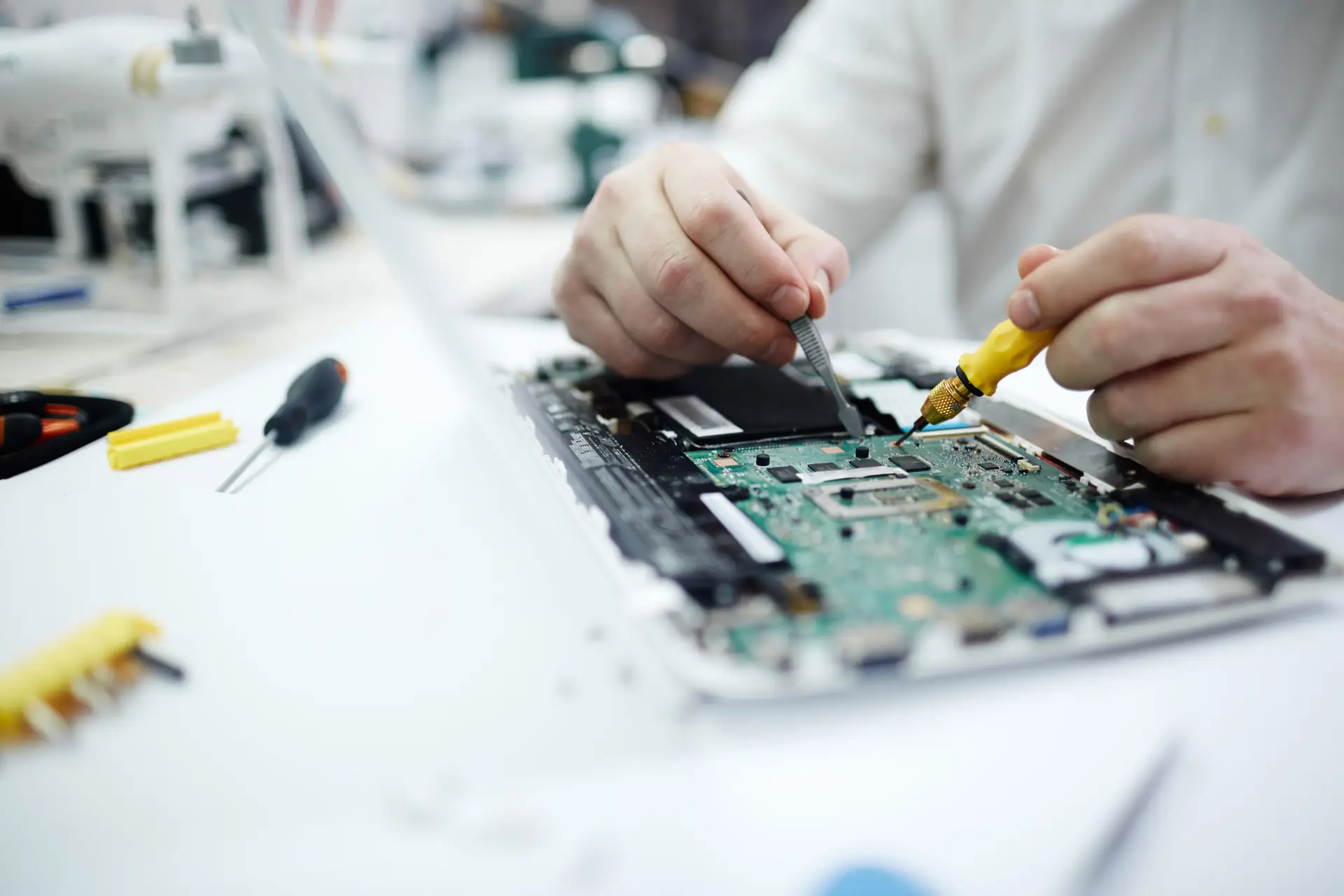
A workshop-level clean means opening the laptop, removing the fan and heatsink where appropriate, clearing dust and debris from vents and fins, and applying new thermal paste or pads if required. Stephensons delivers this standard on-site using mobile tools. It is the right call if you notice:
- Persistent loud fans within minutes of light use
- Throttling during basic tasks or streaming
- Airflow that feels weak at the exhaust even when the fan is roaring
- A fan that rattles, grinds, or starts and stops erratically
Regular internal servicing protects performance, battery health, and longevity, and is especially helpful after a pollen-heavy spring.
Software fixes that reduce heat and noise
Heat is not only a hardware problem. Tuning software can lower CPU load and fan speed.
- Update BIOS and drivers. Visit your laptop maker’s support page for the latest BIOS, chipset, graphics, and fan controller updates. These often improve power management.
- Trim startup apps. In Windows, open Task Manager, Startup tab, and disable unneeded entries. Fewer background tasks equal less heat.
- Check for malware. Unwanted processes can peg the CPU. Run a reputable antivirus and consider a second opinion scan.
- Power plans and performance modes. On Windows, try Balanced or a custom plan limiting maximum processor state to 95 to 99 percent, which can cut heat with little performance loss in everyday use.
- Keep the OS updated. Patches often include performance and stability improvements.
If you need ongoing help fine tuning devices across a small team, our pages on small business IT support and managed IT support outline how proactive maintenance keeps systems stable through seasonal shifts.
Thermal paste: when to replace and what to expect
Thermal paste fills microscopic gaps between the CPU/GPU and heatsink. Over years it can pump out or dry, increasing temperatures.
Replace thermal paste when:
- The laptop is 3 to 5 years old and has never been serviced
- Temperatures remain high after dust cleaning and software tuning
- The heatsink has been removed for any other repair
- You notice sudden temperature spikes under light load
On thin-and-light laptops, paste replacement usually requires partial disassembly and careful handling of ribbon cables. In some models, thermal pads are used for VRAM or power stages, and these may need renewing. If you are unsure about model-specific steps, book a professional who can complete the job on-site to a bench standard.
Spotting early signs of a failing fan
A good fan is barely noticeable. Consider repair or replacement if you see:
- Whining, ticking, or grinding noises, especially at low speeds
- Fan stalls or spins erratically, then surges
- No air movement at the exhaust even when the chassis is hot
- Thermal shutdowns or instant throttling when you open demanding apps
- Visible wobble on the blades or signs of impact damage
Continuing to use a laptop with a failing fan can cause collateral damage to the motherboard or battery through repeated overheating. Early intervention is cheaper and safer.
Student and home-friendly seasonal checklist
- Clean external vents with compressed air at the start of spring and mid summer
- Remove dust from the desk area and keep the laptop on a hard surface
- Update BIOS, chipset, graphics, and Windows or macOS
- Reduce startup apps and remove unused software
- Back up important files before any deeper maintenance
- Schedule a professional internal clean every 12 to 24 months, sooner if you share space with pets or you notice pollen build-up
Mobile-only: how on-site servicing works
Stephensons IT Support Ltd operates as a mobile-only service. We come to your home, office, or student accommodation across South Yorkshire for diagnostics and workshop-level internal cleans. Many issues are fixed the same day where possible, and deeper faults can be escalated or parts ordered as needed. If you want local help in Sheffield specifically, explore our Sheffield IT pages to see how we support residents and small teams.
Helpful links:
- Learn about our Sheffield IT support options: visit our page for IT support Sheffield
- If you need a full repair or clean in Barnsley and nearby, see our computer repairs page
FAQ
Why is my laptop fan so loud?
Usually because it is pushing more air to compensate for heat from blocked vents, dust in the heatsink, warm rooms, heavy background apps, or a failing bearing. Start with surface cleaning, software updates, and trimming startup items. If noise persists, book a professional internal clean.
How can I stop my laptop overheating?
Improve airflow on a hard surface, clean vents with short bursts of compressed air, update BIOS and drivers, remove unnecessary startup apps, and keep the room cooler. If throttling continues, an internal clean and fresh thermal paste typically help.
When should thermal paste be replaced?
Often every 3 to 5 years, or sooner if temps stay high after cleaning, the heatsink has been removed, or you see sudden spikes under light load.
What are signs my fan is failing?
Grinding or whining noises, erratic speed, weak or no airflow, sudden thermal shutdowns, and visible wobble indicate a failing fan that needs repair or replacement.
Can software fixes reduce heat and noise?
Yes. BIOS and driver updates, power plan adjustments, OS patching, malware checks, and cutting startup apps can meaningfully reduce CPU load and fan speed.
Summary and next steps
Seasonal dust, pollen, and warmer rooms make laptops work harder. A thoughtful routine, from safe compressed air cleaning and airflow tweaks to BIOS updates and app housekeeping, often restores quiet performance. If noise and heat persist, a workshop-level internal clean with fresh paste and a fan inspection is the smart move.
If you would like friendly, plain-English help at home, in halls, or at the office anywhere in South Yorkshire, Stephensons can come to you and complete a bench-standard clean on-site. To see local repair options, visit our computer repairs page, or if you are in Sheffield, explore how our IT support Sheffield service can help.